Talnova user guide
What each part of Talnova does and how to get things done: for learners and apprentices, workplace managers, tutors and staff.
Getting started
For everyone: signing in, finding your way round and the things every account has.
What Talnova is
For: Everyone
Talnova is one login for learners and apprentices, tutors, workplace managers and Talnova's own staff. What you see depends on your roles in your organisation: a learner sees their programme, a tutor their caseload, a workplace manager their apprentices, and managers the tools to run the organisation. One person can hold several roles (Tutor and IQA, say), and one login can belong to more than one organisation, such as a training provider and an employer.
Talnova's public website (courses, employers, the Leeds Academy, jobs, news) sits at the same address. This guide covers the app you use once you've signed in.
Links in this guide open the real page. If a page isn't part of your role it will send you back to Home, so the For me view shows only the parts that apply to you.
Signing in, invitations and passwords
For: Everyone
Joining from an invitation (the usual way in)
- Open the link in your invitation email.
- New to Talnova: fill in your name, Choose a password and press Join <organisation>.
- Already have a login: Sign in to accept, then Accept and continue. The organisation is added to the login you already have.
- If it says the invitation has expired, ask whoever invited you to Resend it.
Signing in
- Go to Log in on the website (or open the phone app).
- Enter your Email and Password and press Sign in.
Forgotten your password
- On the sign-in page press Forgotten your password?
- Enter your email and press Send code.
- Type the 6-digit code from the email (it lasts 30 minutes) and a New password, then Set new password. That signs you in.
If a banner says Please confirm your email address, click the link in the confirmation email, or press Resend for a new one.
Signing up without an invitation works, but the account shows "You're not part of an organisation yet" until a provider or employer invites you. Anyone starting an apprenticeship should use their invitation link instead.
Finding your way round
For: Everyone
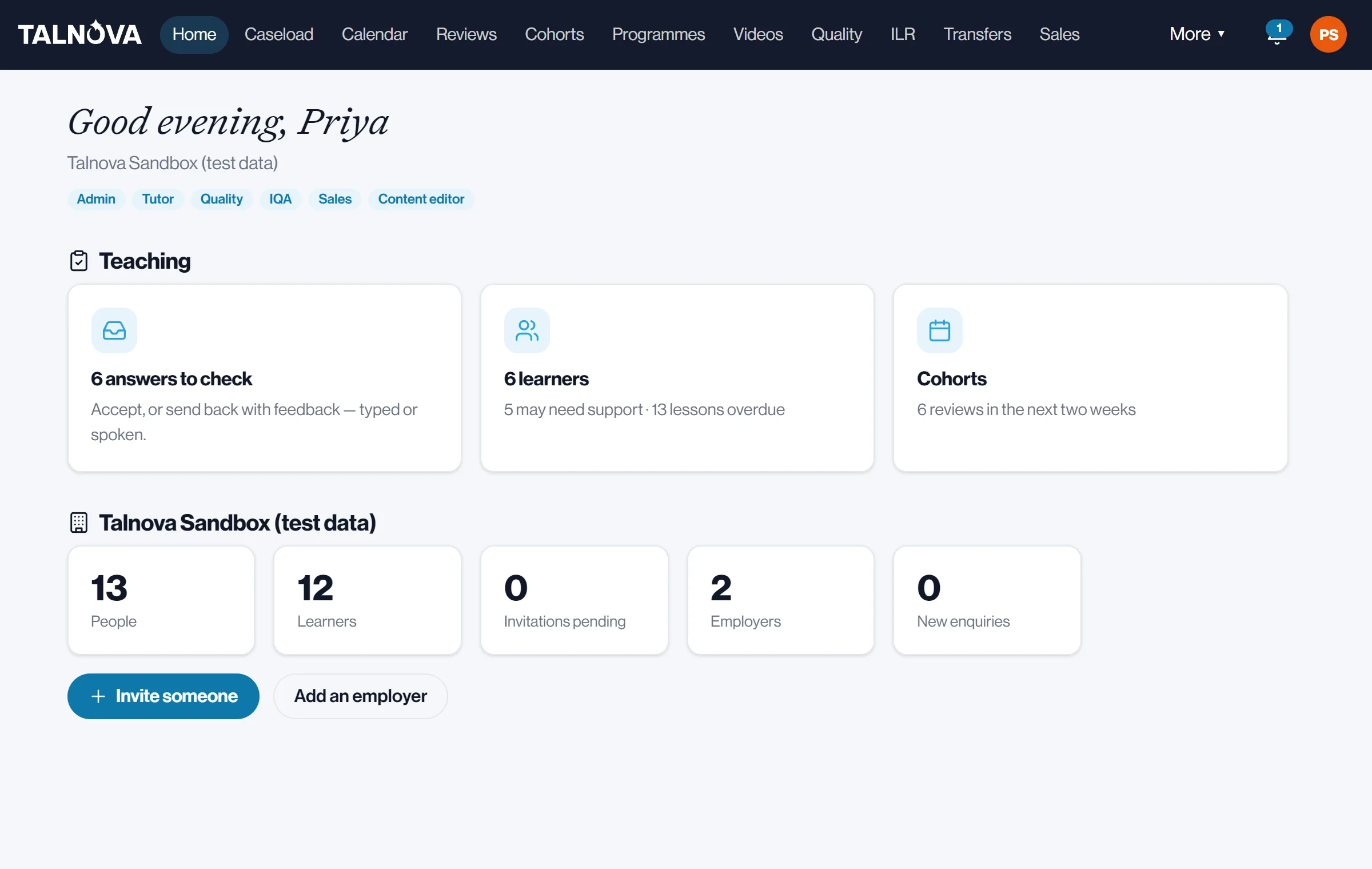
- On a computer: the areas for your roles run along the top bar. Areas that don't fit go under More. The bell is your notifications, and your picture opens Profile & settings, User guide and Sign out.
- On a phone (browser or the Talnova app): the first four areas are on the bottom bar. Menu holds everything else: notifications, the other areas, your profile, this guide and sign out.
- Home is always first. It shows what's waiting for you: your next lesson, answers to check, a review to acknowledge or a plan to sign.
- The ? button in the corner opens the help assistant. Ask it how to do something, or about your own records (your hours, your reviews, your caseload). It sees only what you can see and can't change anything.
The phone app
For: Everyone
The Talnova app for iPhone and Android is the same Talnova you use in a browser. It opens straight to Home, or to sign-in, and updates itself whenever Talnova changes, without a store update. Its extras are push notifications and the camera and microphone for work stories, voice notes and video answers.
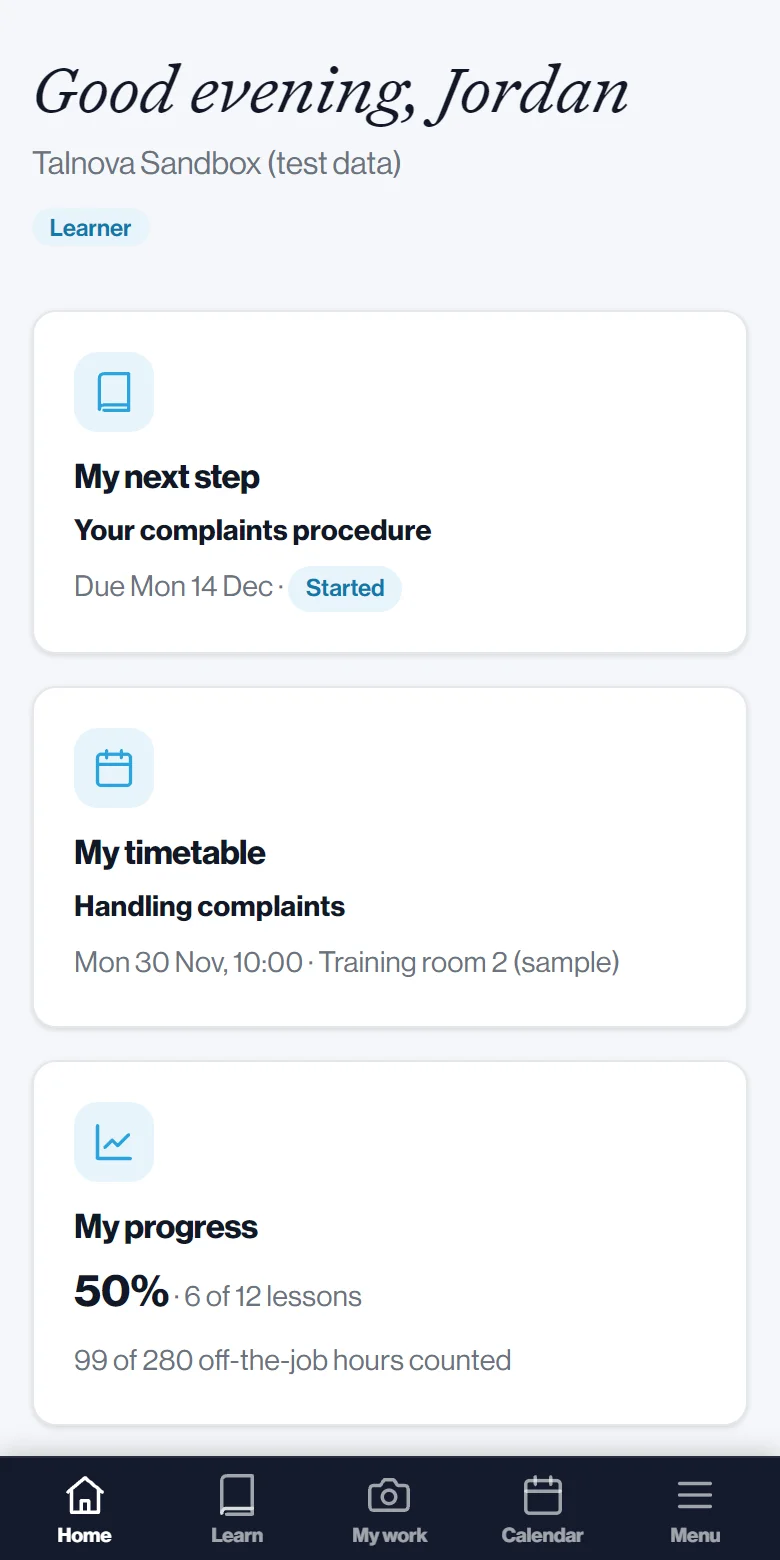
Work stories and off-the-job logs are saved on the phone first, so a poor signal doesn't lose anything. They send themselves when the signal comes back.
Notifications
For: Everyone
The bell (on a phone, Menu → Notifications) lists everything that needs you: an answer sent back, a review to acknowledge, a plan to sign, a follow-up due. Each one links to the item. Opening the list marks them all as read.
To be told on your phone or computer as well, go to Profile & settings and press Turn on notifications. In the phone app, allow notifications when it asks.
Profile & settings
For: Everyone
- Photo: Upload photo or Remove.
- About you: first and last name, preferred name, pronouns and mobile, then Save.
- Appearance: Match my device, Light or Dark.
- Notifications: Turn on notifications for this browser or device.
- Your organisations lists where you're a member and your roles there.
- Change password signs you out on your other devices.
- Where you're signed in lists your devices. Sign out any you don't recognise.
Policies: reading and agreeing
For: Everyone
Policies holds the Talnova policies that apply to you. My policies puts first any you've been asked to read and agree to (Waiting for you), with the date they're needed by.
Agreeing to a policy
- Open the policy from Waiting for you.
- Read it through. You're agreeing to this exact version.
- Press I agree. When a new version is published you may be asked again.
Managing the policy library is covered under Policies: managing the library.
Learners and apprentices
Your programme, your evidence, your hours, your reviews and your next steps.
Your Home page
For: Learners
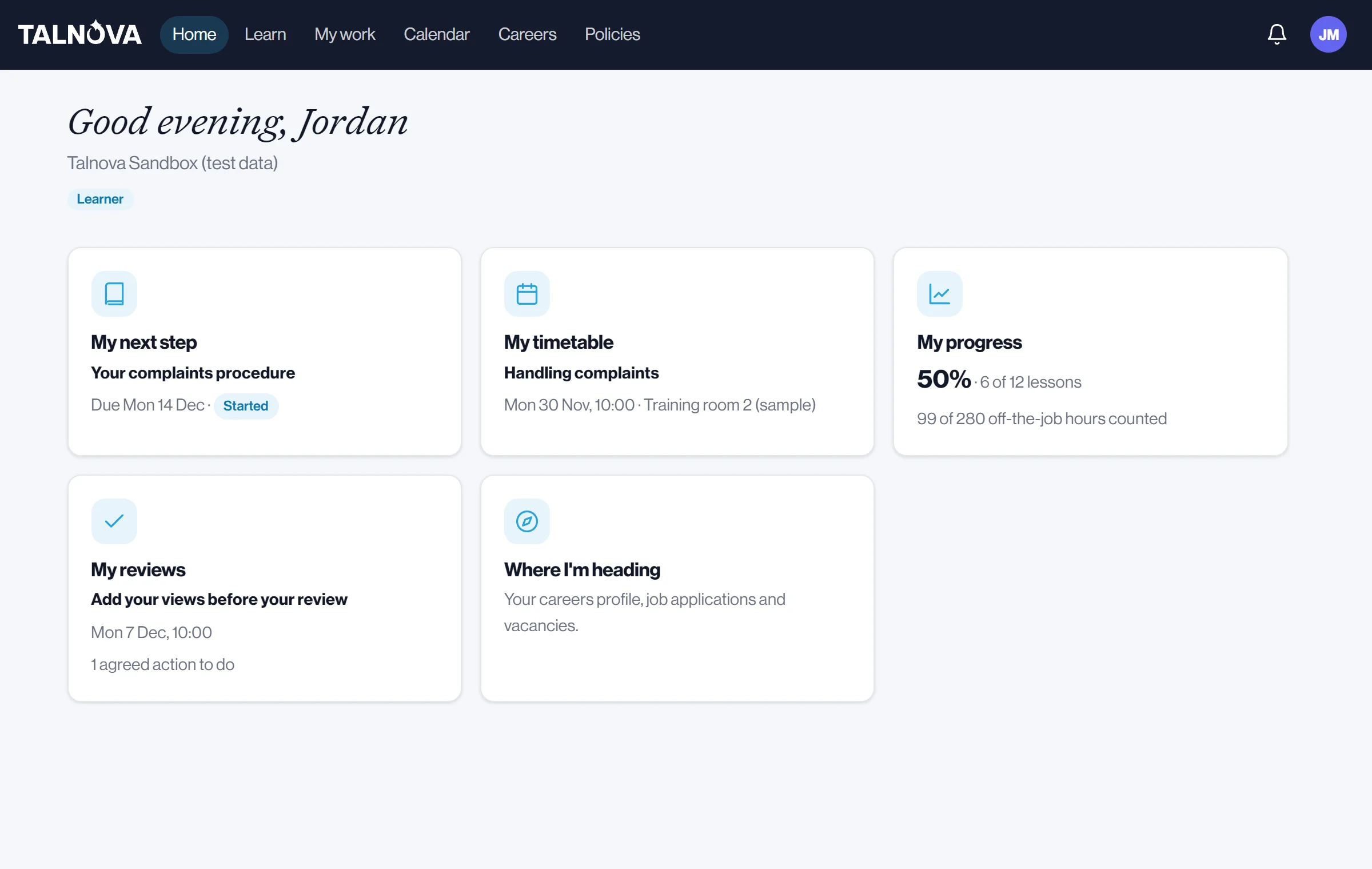
- My next step: the next lesson to do, or a short video that's due.
- Waiting for your signature: a training plan or document you need to read and sign (see Signing your training plan and documents).
- My timetable: your next sessions.
- My progress: lessons done as a percentage, and off-the-job hours counted against your plan.
- My reviews: for example "Please read and acknowledge your review".
- Short videos and Where I'm heading (your career goal).
Learn: your programme and lessons
For: Learners
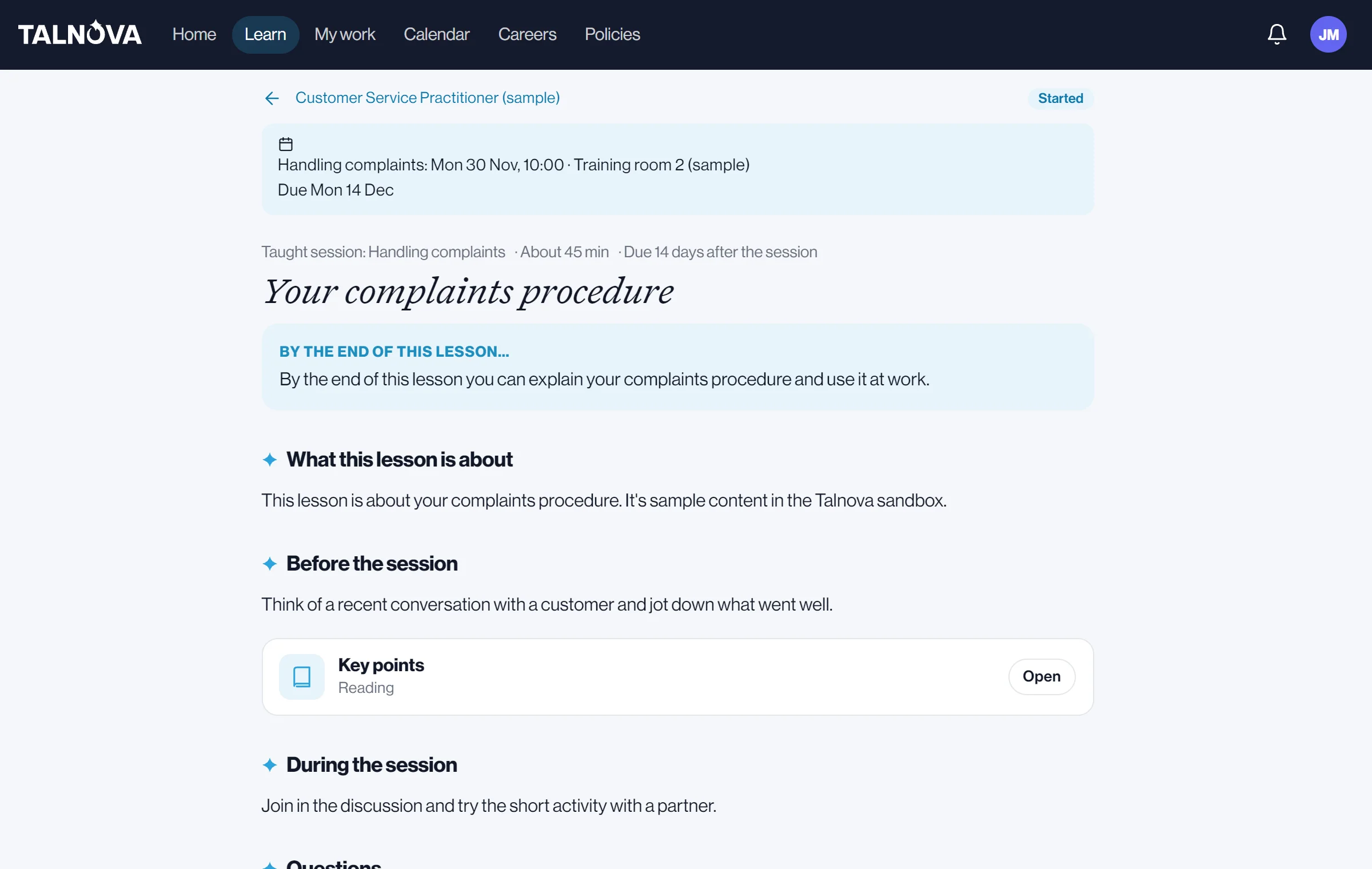
Learn shows your whole programme from the first day: a progress bar, My next step, then units → sessions → lessons. Each lesson shows where it's at: Opens soon, To do, Started, With your tutor, Have another go or Done. Lessons usually open about a week before their session ("Opens nearer the session"). If you're on more than one programme, choose it from the drop-down at the top.
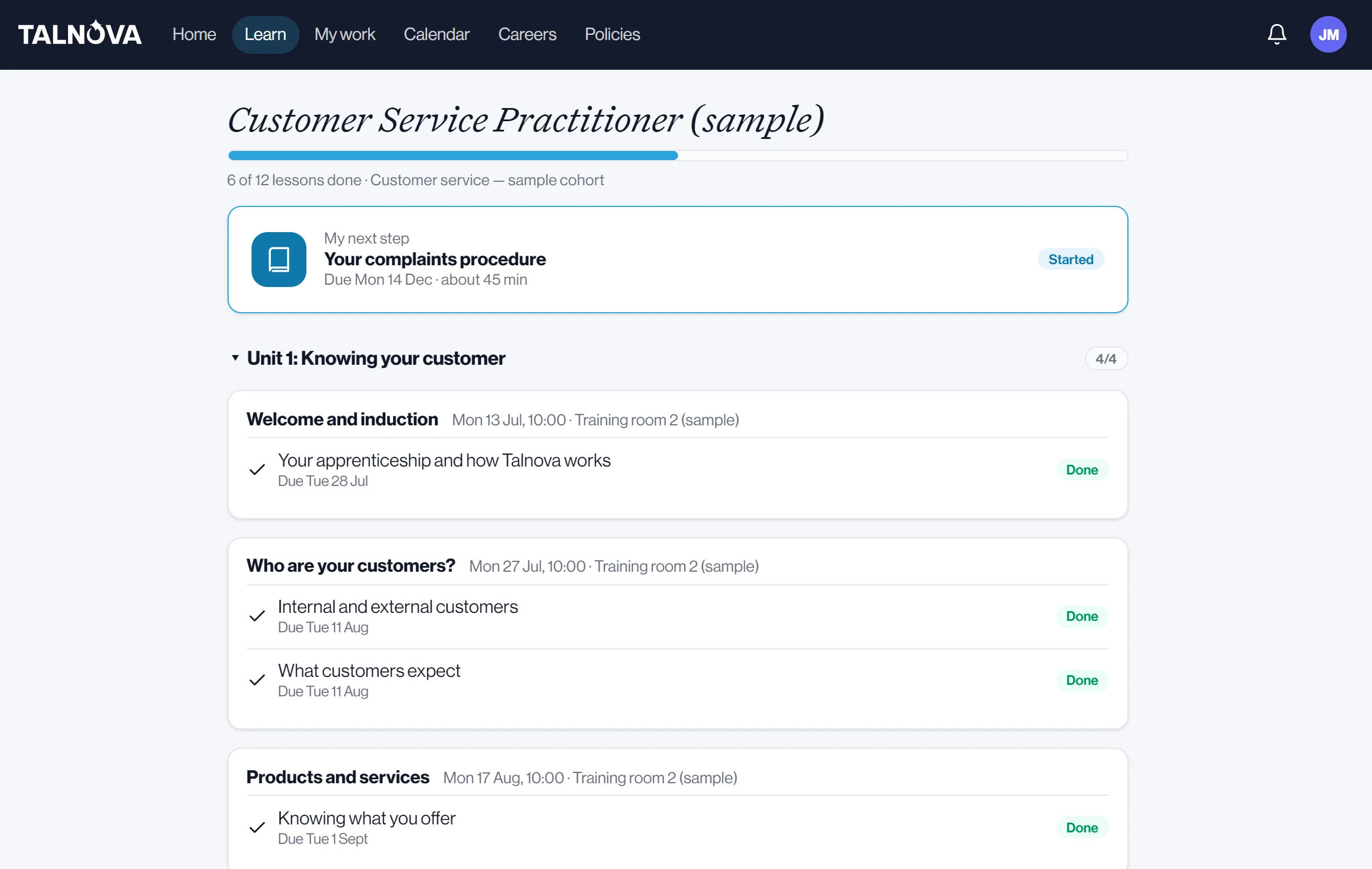
Doing a lesson
- Open the lesson from Learn or My next step.
- Read What this lesson is about and the Before and During the session notes.
- Open the materials: Open, Open full screen, Show transcript, or Download original where it's allowed.
- Answer the Questions. A quick choice is marked straight away with Check my answer, and you can try again. For a written answer, type it or press Speak, then Save answer to finish later or Send to my tutor.
- If Tidy my writing is shown, it suggests a tidied copy of your answer. Choose Use this or Keep mine. Your tutor can see when AI was used.
- Do the Back at work task if there is one. Show what you did sends a work story for it.
- At the end, rate Was this lesson useful? (1–5 stars and an optional comment). Tutors use the ratings to improve lessons.
A lesson with questions is complete when the required answers are in and your tutor has accepted any they check. If your tutor sends one back it shows Have another go, with their feedback.
Short videos
For: Learners
A full-screen, swipe-up feed of short learning clips. For you (videos your tutor assigned, with due ones first) comes first, then Explore. Captions are on by default: Tap for sound. The side buttons are Captions, Transcript and Questions.
Answering a video's question
- The video may pause at a question.
- Tap a choice, type, or record your answer. You can listen back and Record again.
- Press Save answer or Send to my tutor. Not now skips it for the moment.
Watching alone counts as "watched"; an assigned video is done once its questions are answered. Answers saved without a signal send later.
My work: showing what you did
For: Learners
Work stories are your evidence from the workplace: photos, video or a voice note with a few words about what you did. Your tutor links them to the skills in your apprenticeship.
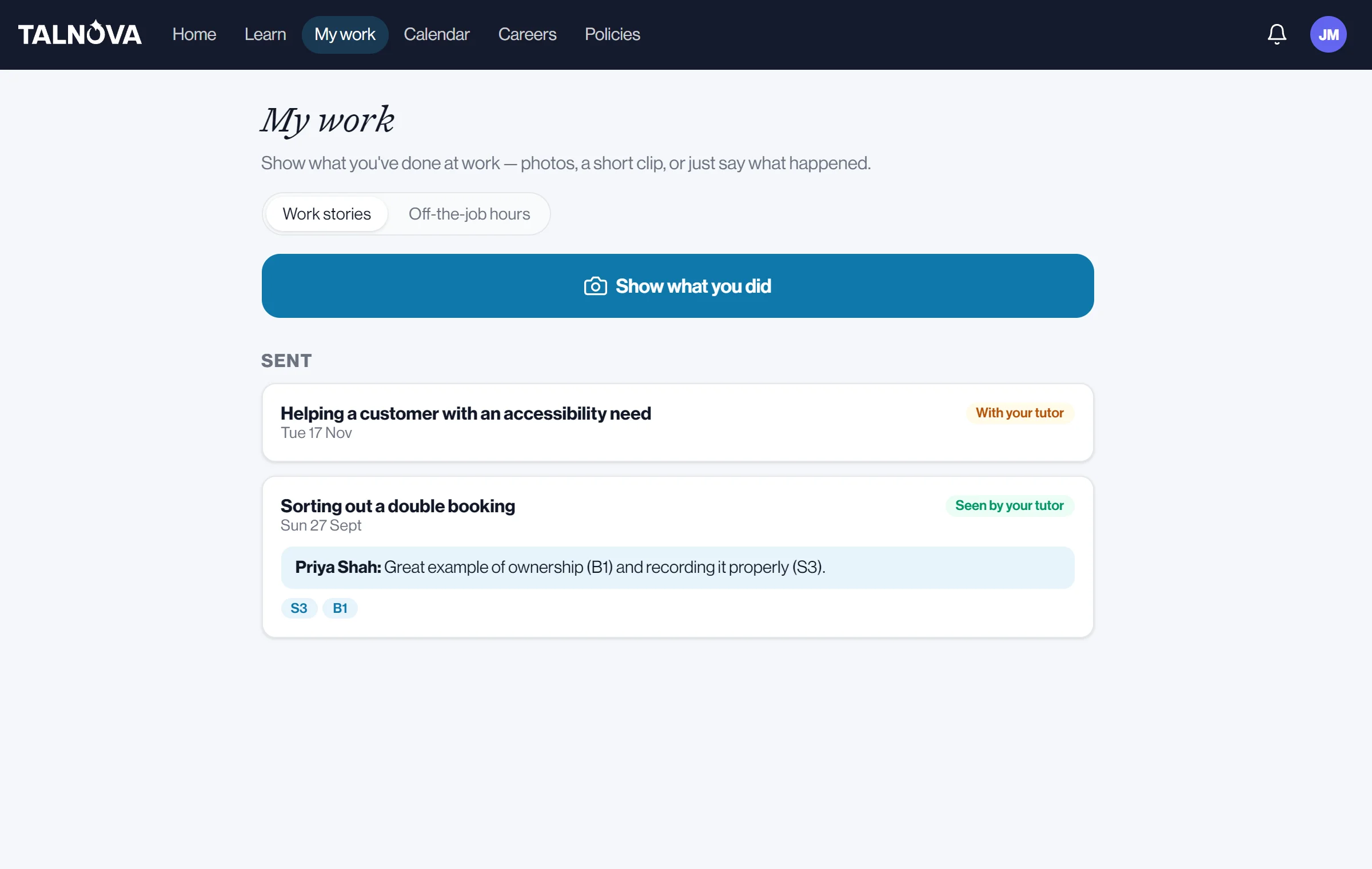
Sending a work story
- Go to My work and press Show what you did.
- Fill in What did you do? and Tell us what happened (type it or Speak it), when it was and, if it's for one, the workplace task.
- Add Photos, Video or Record voice.
- On each photo, tap Hide details and draw black boxes over faces, customer details or anything private (Undo, Done).
- Tick "I've hidden faces, customer details and anything sensitive", then press Send to my tutor.
- It's saved on your phone first. You'll see Waiting for signal and then Sending…%, and you can close the app in the meantime.
Drafts wait under My work: Continue or Delete. Sent stories show With your tutor, Seen by your tutor or Have another go; for that last one, use Add more. Your evidence is never used for marketing.
Off-the-job hours
For: Learners
An apprenticeship needs a planned number of hours of off-the-job training: learning during paid hours that isn't your normal day-to-day work. Off-the-job hours shows four figures, Planned, Logged, Checked & counted and Still needed, and whether you're On track, On track once checked or Behind plan.
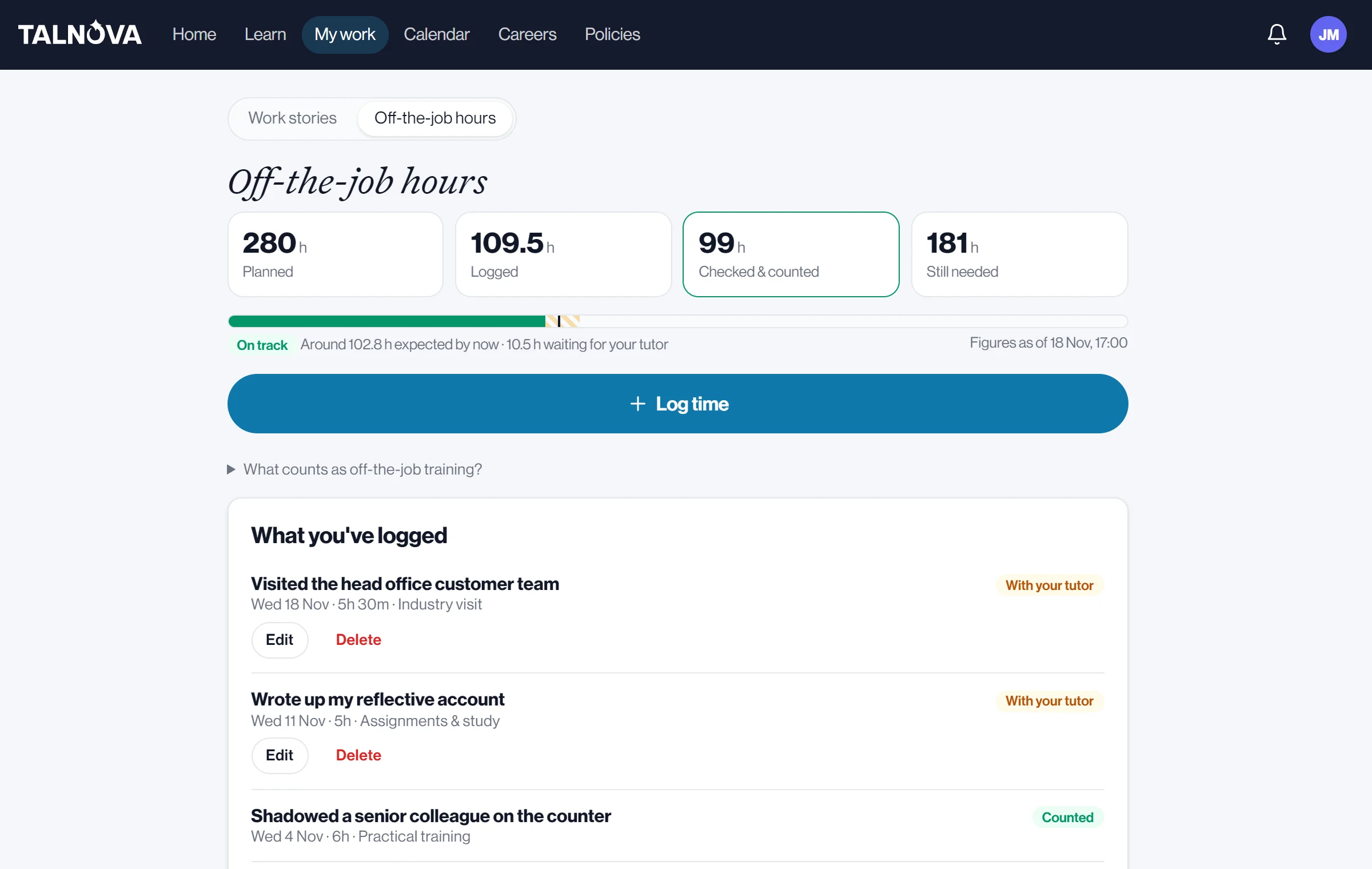
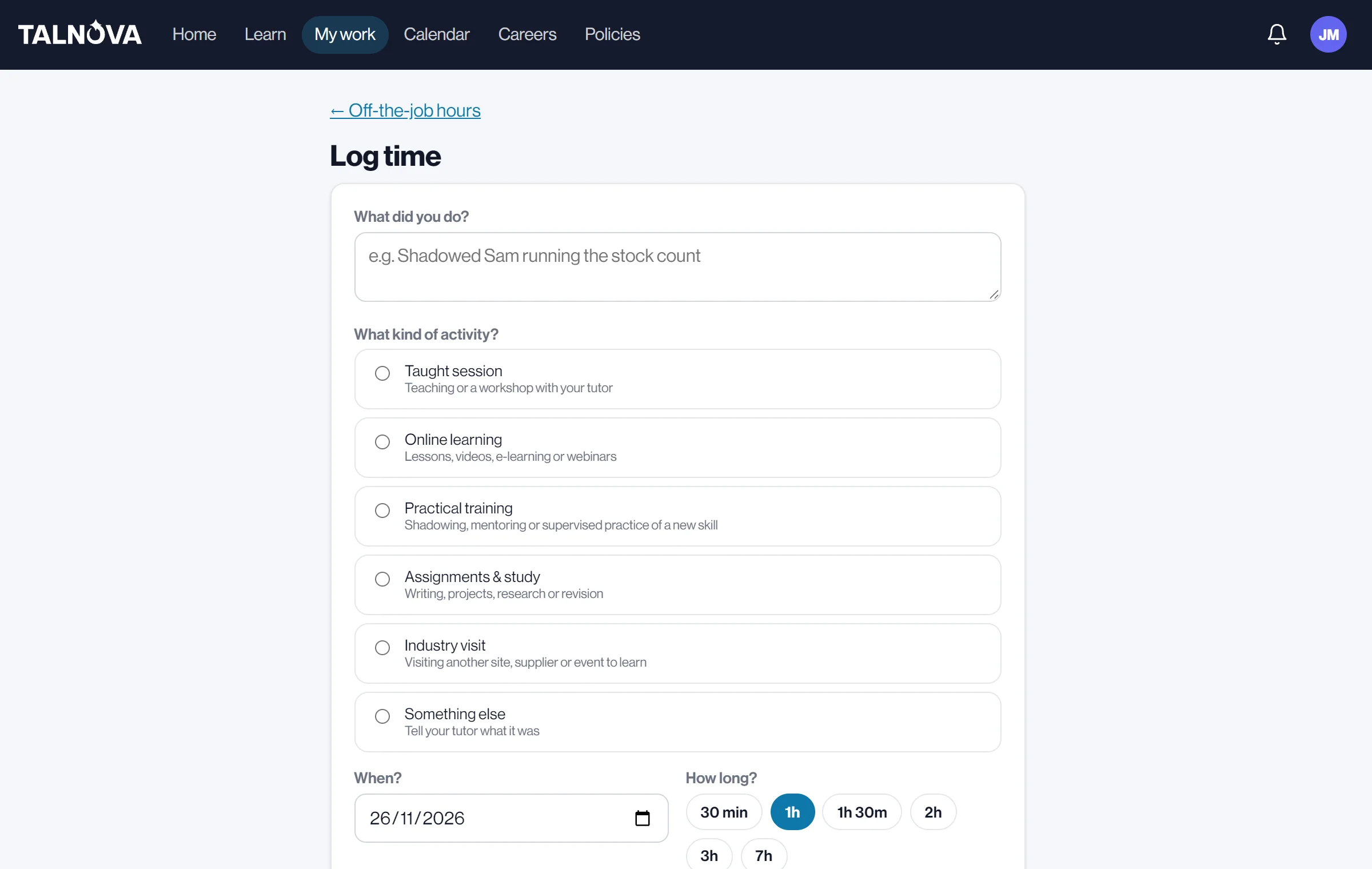
Logging time
- Press Log time.
- Say What did you do? and choose What kind of activity?: Taught session, Online learning, Practical training, Assignments & study, Industry visit or Something else.
- Set When? (not a future date) and How long? (up to 12 hours in one go).
- Write What did you learn? and, if you have one, attach a sent work story as Proof.
- Press Log it. Your tutor checks it.
Statuses: With your tutor, Counted, Your tutor has a question (reply with Answer and resend) and Not counted. You can Edit or Delete an entry until it's checked. "What counts as off-the-job training?" on the page explains the rules: normal work and progress reviews don't count.
Calendar
For: Learners
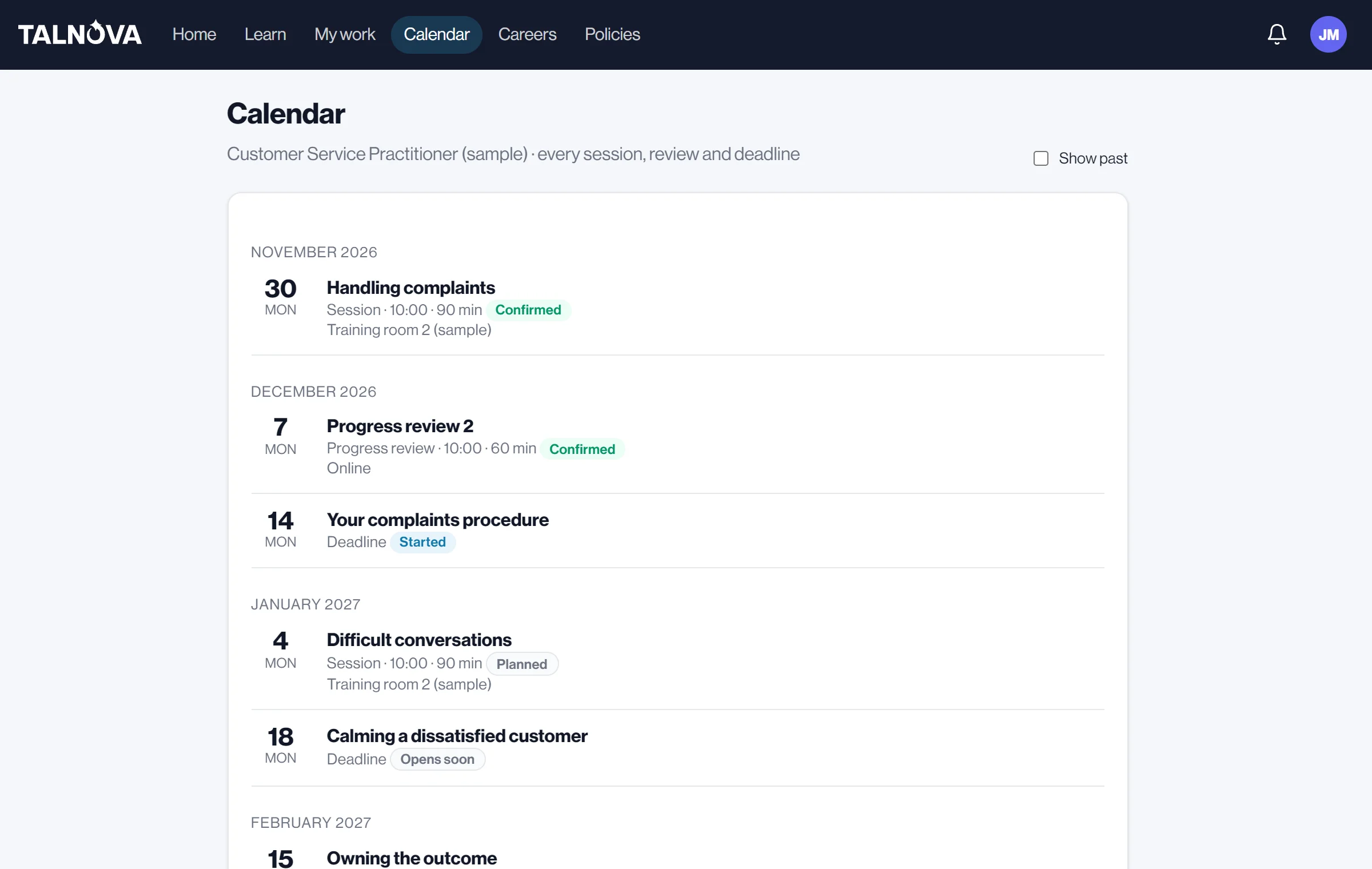
Every session, review and deadline for your whole programme, each marked Planned, Confirmed or Cancelled, with where it is and Join online for remote sessions. If a date moves, the old date is shown as "Moved from…". Show past shows earlier dates.
Your progress reviews
For: Learners and workplace managers
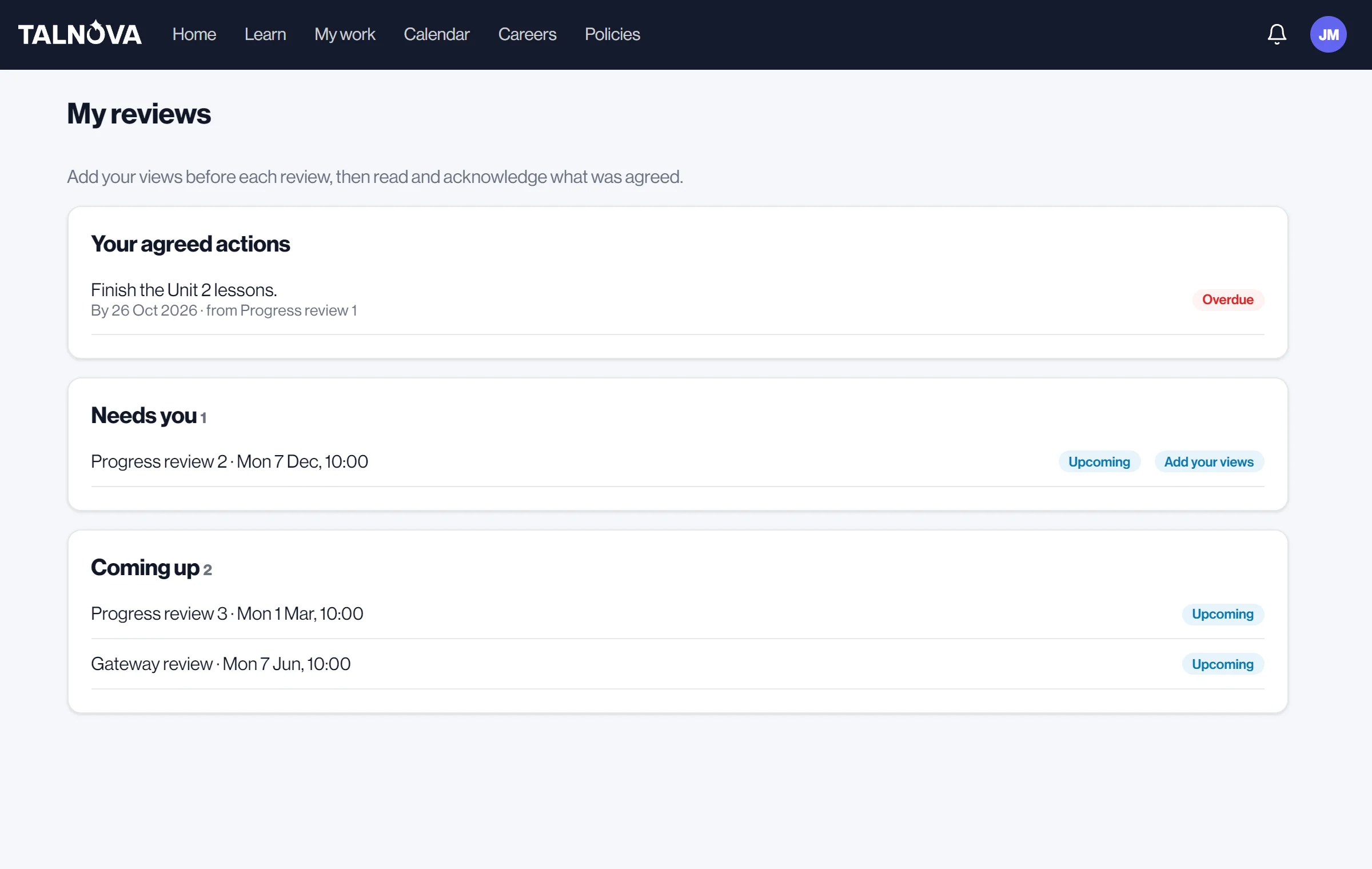
At least every 12 weeks you, your tutor and your workplace manager meet for a progress review. You'll find yours from Home → My reviews or under Reviews, grouped into Needs you, Coming up and Done, with the actions you agreed.
Before the review
- Your tutor sends you some questions (and may ask something specific) with a reply-by date. You'll get a notification.
- Answer the boxes and press Send to the tutor. You can change them with Update my views until the review is held.
After the review
- Your tutor writes up and signs the record, and you're asked to acknowledge it.
- Read it, then choose I've read this and it's a fair record, or I disagree with part of it and say which part.
- Press Acknowledge.
- Mark your agreed actions Done or Didn't happen as you go (Reopen if needed).
If a signed record is changed later it becomes a new version, and you'll be asked to acknowledge that version too. Employers never see support notes, private notes, the learner's own views or OTJ detail.
Signing your training plan and documents
For: Learners and workplace managers
Before an apprenticeship starts, the learner, the employer and Talnova each sign the training plan: what the apprenticeship covers, its start and end dates, the off-the-job hours (reduced for any prior learning), the price, and what each of the three of you will do. Some documents, such as the apprenticeship agreement, need signing as well.
Signing
- Home shows Waiting for your signature. Open it, or go to Plans and agreements.
- Choose the apprenticeship and read the plan or document in full. Print or save as PDF keeps a copy.
- Press Read and sign, type your full name and press Sign.
You sign one exact version. If the plan changes later (a new end date, say), Talnova issues a new version with the reason, and everyone signs again; earlier versions and their signatures are kept. The page also lists Documents you've been given and Policies you've been given.
Careers and applying for jobs
For: Learners, and anyone signed up to apply for a job
- Applications: invitations from employers first (See the role, Apply or No thanks), then each job you've applied for and where it's at: Sent, Being looked at, Shortlisted, Interview (with date and place), Offer made, Offer accepted, Started, Not successful (with any feedback) or Withdrawn. Messages reaches the recruiting team. Report a concern goes to Talnova's managers and support team, never the employer. Withdraw takes an application back.
- Find jobs: search and sector filters, Best for me first with the reasons, the star to save a role (Saved) and Follow employer.
- Explore careers: answer eight questions with Love it, Maybe or Not for me to get sectors worth a look, with the reasons. Add to my interests, See jobs, Not for me. It only suggests.
- My profile: headline, about you, experience, skills, location, qualifications, availability, the work and sectors you'd consider, and Job alerts (Email me too). Under Invitations you can let approved employers invite you. They see your headline, skills, location and availability, never your name or contact details.
- Achievements: programmes and awards verified by Talnova. Include these when I apply, Print or save my record, and Where I'm heading (your goal, which your tutor sees at reviews).
Applying for a job
- Find the role on the jobs board or under Find jobs.
- Press Apply with your profile. If you haven't yet, fill in a headline and something about you.
- Check what will be sent, answer the role's question if it has one, and press Send application.
- You'll be notified whenever the status changes or a message arrives.
Moving over from worldweavertd
For: Learners transferring from NIC (worldweavertd)
Learners whose training is moving from worldweavertd to Talnova get a personal link by email. You don't need a login to open it.
- Open the link and read the transfer agreement.
- To move: choose I agree to move, type your full name, tick the box and press Agree and set up my login.
- To stop instead: choose I'd like to cancel my training, give a reason if you want to, tick and press Cancel my training.
The link keeps working, so talk to your tutor first if you're not sure. Once you've moved, Before you moved on Learn opens your earlier record.
Workplace managers
For employers' contacts and mentors: a deliberately simple view of your apprentices.
Your apprentices
For: Workplace managers
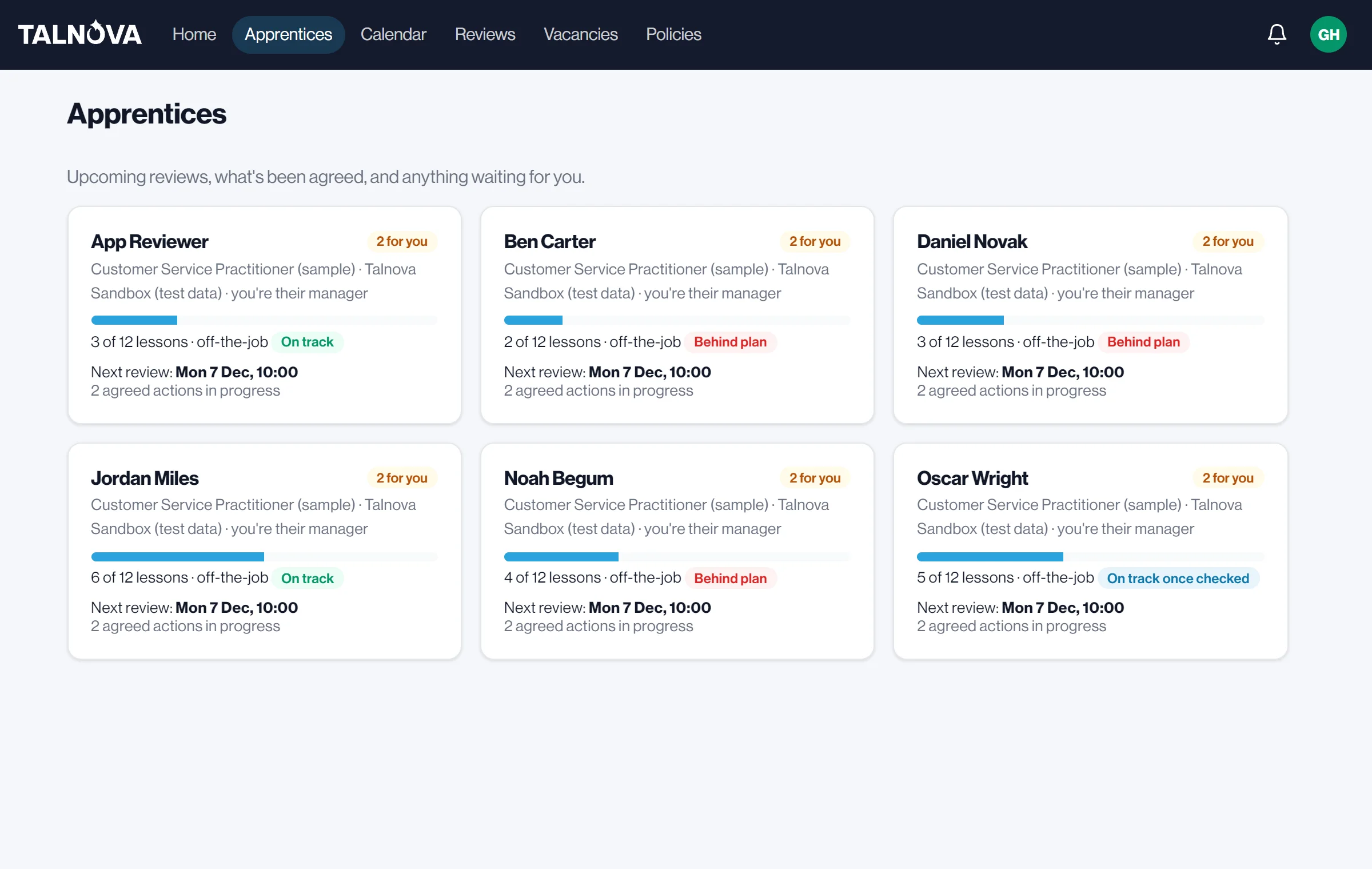
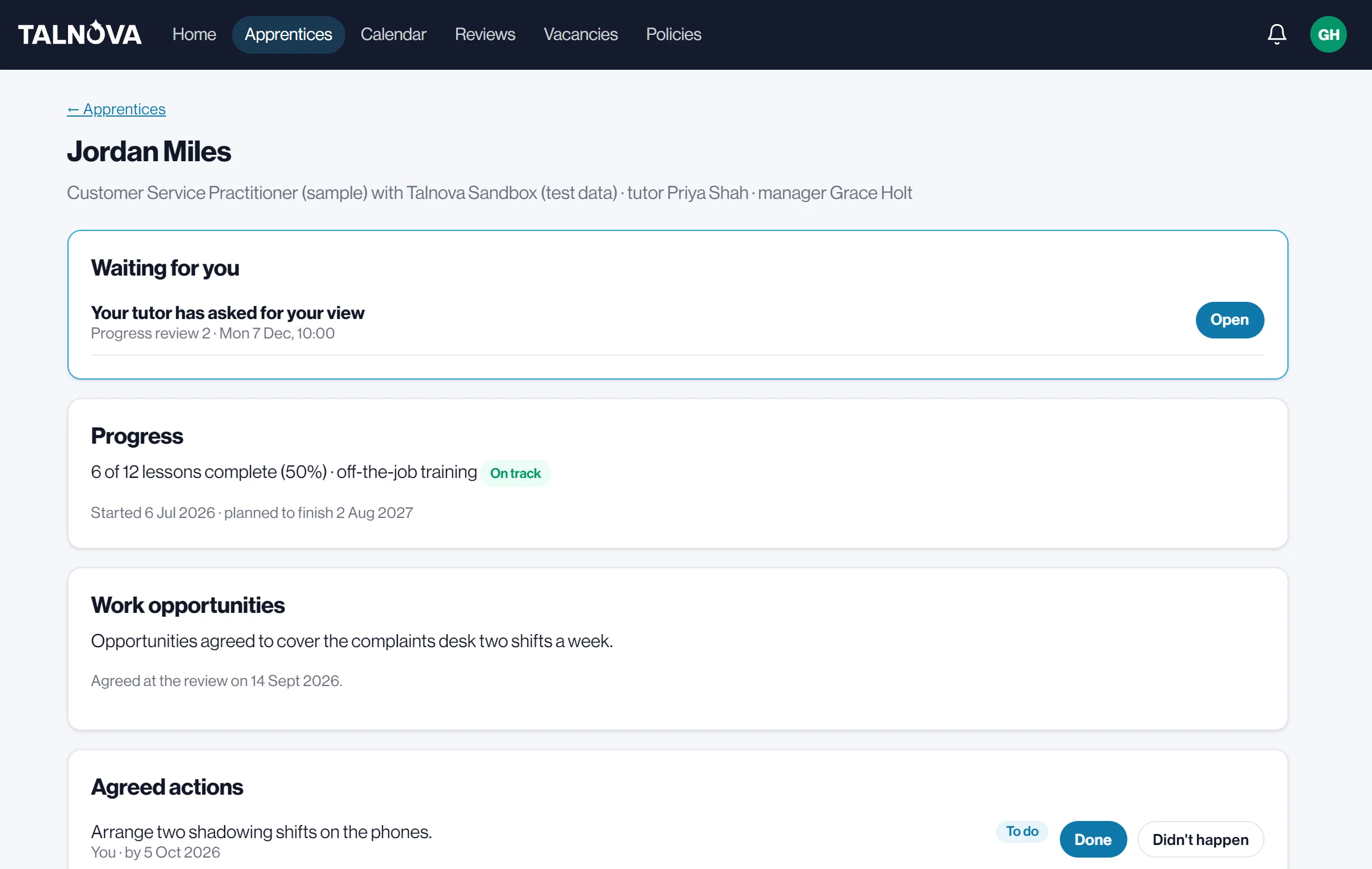
Apprentices lists each of your apprentices with their progress, whether their off-the-job hours are on pace, their next review and anything waiting for you. Open one to see Waiting for you, Progress, Work opportunities, Agreed actions (mark them Done or Didn't happen) and their Reviews.
You never see the tutor's private notes, support or wellbeing details, or the learner's own views.
What a workplace manager does
- Give your views before each progress review and acknowledge the record afterwards (see Your progress reviews).
- Sign the training plan and the apprenticeship agreement (see Signing your training plan and documents).
- Make room for the off-the-job training in the plan, and the workplace opportunities the apprentice needs.
- Keep the agreed actions moving.
Calendar
For: Workplace managers and tutors
Calendar shows reviews and dates for the people you work with. Cohort timetables are kept under Cohorts for staff; there isn't yet one combined staff calendar.
Advertising a vacancy
For: Employers' people, Sales and managers
Vacancies go on Talnova's public jobs board, and Talnova checks every one before it goes live.
Employer: putting a role on the jobs board
- Go to Vacancies and press New vacancy.
- Fill in the advert: title, summary, about the role, a normal day, what they'll need, where it can lead, location, hours, sector, pay and closing date, plus an optional question for applicants.
- Press Send to Talnova to check. Talnova will Approve and publish it or Send back with a note. Take back to edit while it's waiting.
- Once it's live, applicants appear under Applicants. Changing a live advert sends it back to be checked. Close ends it and Ask to reopen brings it back.
Working through applicants
- Open an applicant to see their profile as it was when they applied, their answers, and verified achievements if they chose to share them.
- Use Messages for everything, including interview arrangements.
- Under Where it's at, move them on: Shortlisted, Interview (with date, time and place), Offer made and so on. Give feedback for them if it's not going ahead.
- Previous and Next step through the list.
Once a vacancy is live, People you could invite suggests people who are open to invitations and whose sectors or location fit, without their names. Invite them with a note. Apprenticeship vacancies aren't advertised for now.
Tutors and teaching staff
Day to day: checking work, running cohorts, starting apprentices and holding reviews.
Caseload: checking answers, work and hours
For: Tutors, Quality and IQA
Caseload is your daily list. Its tabs are To check (lesson and video answers), Work (work stories), OTJ (off-the-job logs) and Learners. Managers and quality can tick Everyone's learners.
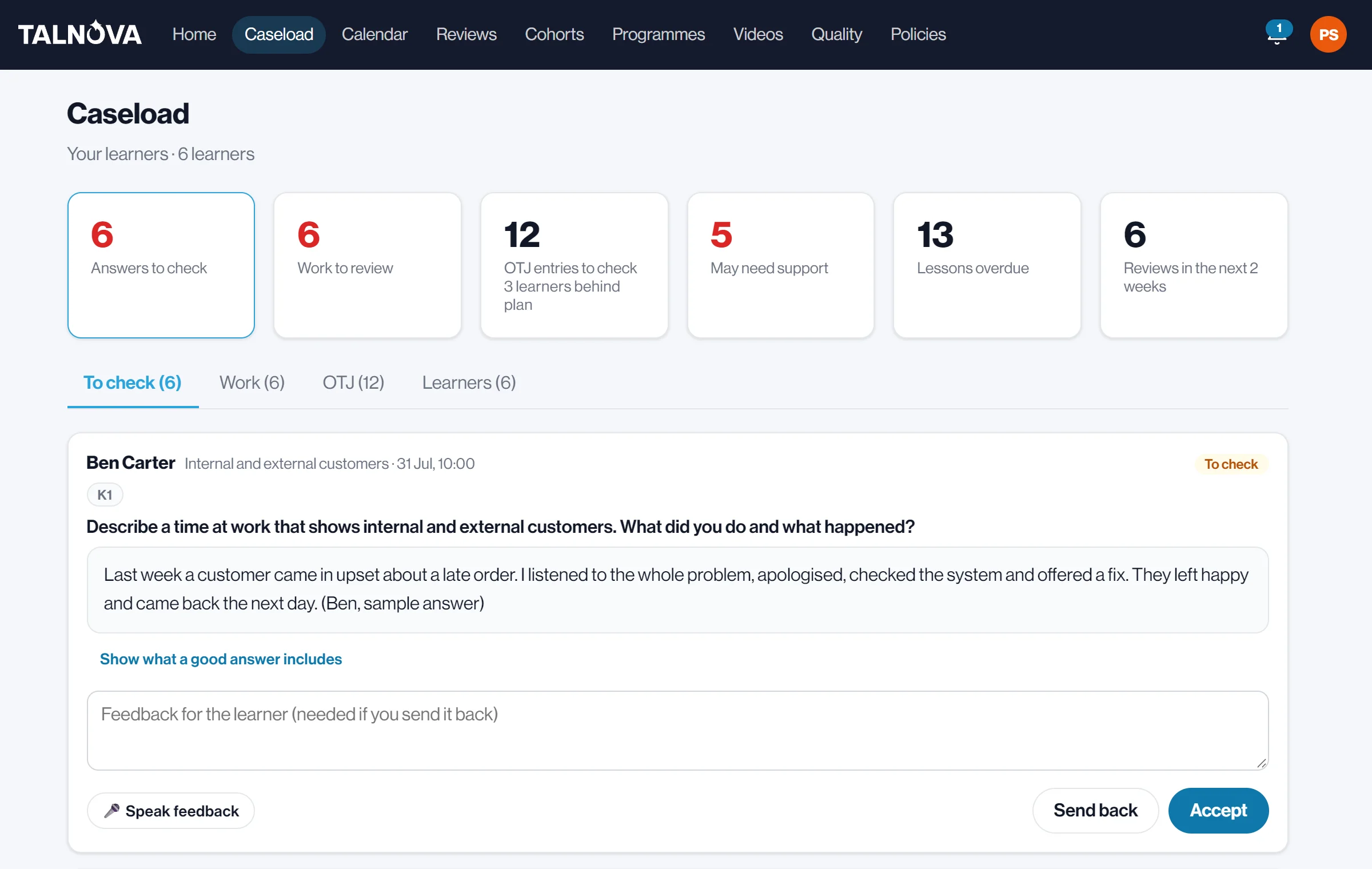
Checking an answer
- Open it from To check. Show what a good answer includes gives the lesson's guidance.
- Accept it, or Send back with feedback (typed, or Speak feedback). The learner sees Have another go.
Checking a work story
- View the photos, video or voice note.
- Tick the KSBs (knowledge, skills and behaviours) it shows. Suggest KSBs offers suggestions if AI is switched on.
- Accept it, or Ask for more with what you need.
Checking off-the-job hours
- Count it if it's all valid.
- Review… to count only part of it (Count Xh, with a note), Ask a question, or Doesn't count (with a note).
The Learners tab shows each learner's progress and flags such as "may need support" or overdue work. Click a row to open the learner.
Cohorts and timetables
For: Owners, Admins, Tutors, Quality and IQA
A cohort is a group of learners taking one signed-off version of a programme from a start date. The programme's sessions become the cohort's timetable.
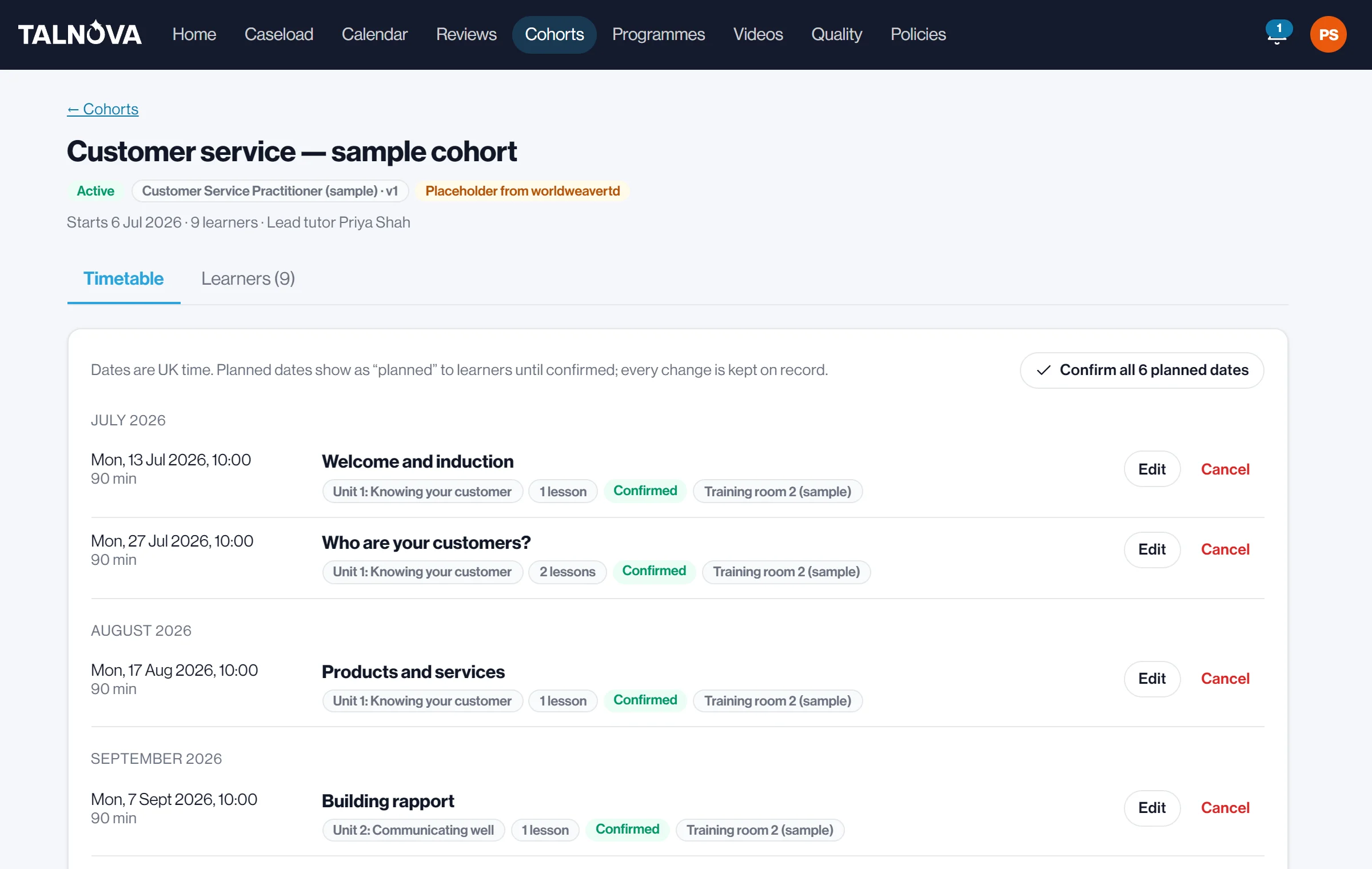
Setting up a cohort (Owner or Admin)
- In Cohorts press New cohort.
- Choose the Programme and its signed-off Version, then set a name if you want one, the Start date, the Usual session time and the Lead tutor. Press Create cohort.
- On the Timetable tab, check the planned dates. Confirm all N planned dates once they're agreed.
Changing the timetable
- Edit a session to change its date and time (UK time), length, location, join link or "Date confirmed". Moving a date needs a reason, and learners are told.
- Cancel a session with a reason (Restore brings it back).
- Release now opens material the tutor releases by hand.
Enrolling a learner (Owner or Admin)
- Open the cohort's Learners tab and press Enrol learner.
- Enter their Email and names, Planned OTJ hours, Employer, Workplace manager and Tutor, then press Enrol.
- Someone already in your organisation is added straight away. Anyone else gets an invitation, and their place starts when they accept. If email isn't set up, Copy the link and send it yourself.
- Next, start their apprenticeship: see Starting an apprenticeship.
Settings holds the cohort's name, status (Planned, Active, Completed, Archived) and lead tutor. Show archived on the list shows old cohorts.
A learner's page
For: Teaching staff
Open a learner from their cohort's Learners tab or your caseload. Everything about their apprenticeship is on one page:
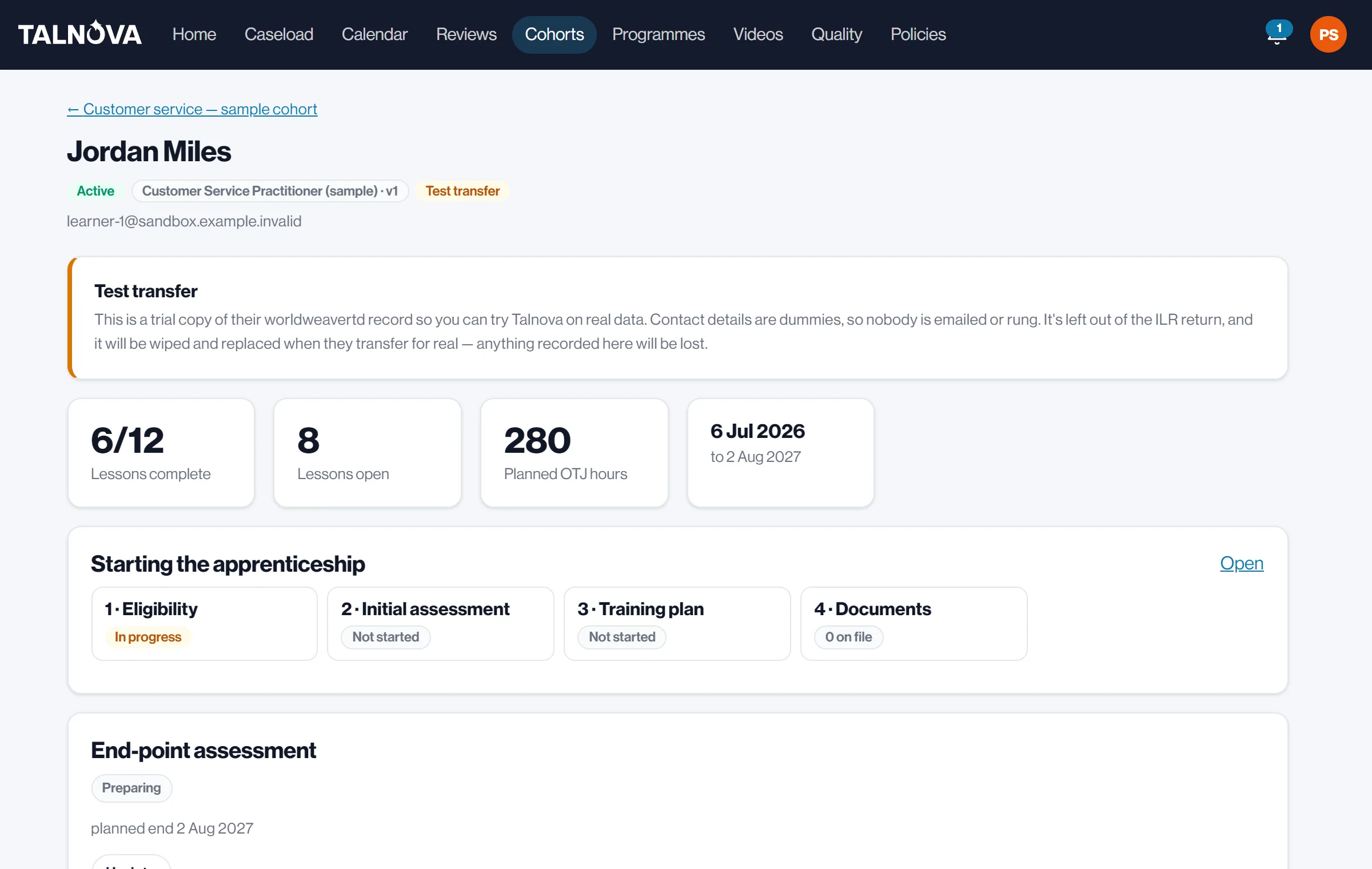
- Enrolment (Owner or Admin): status (Active, Break in learning, Withdrawn, Completed, with the last day or return date), tutor, employer, workplace manager, planned OTJ hours and planned end date. Save. Anything the ILR needs goes to a second person to approve.
- Starting the apprenticeship: eligibility, initial assessment, training plan and documents. See Starting an apprenticeship.
- Learning plan: Preview a lesson, Move deadline…, or Exclude… a lesson with a reason (Undo under Adjustments).
- Reviews (Book an extra review), the ILR record, Quality actions and EPA progress.
- Off-the-job training: their logs, and Add hours → Add and count for training you recorded yourself (marked as staff-added).
- Their work from the workplace, short videos (Assign a video) and answers.
Health, support and safeguarding details are shown only to the people who need them, such as their own tutor or the support team.
Starting an apprenticeship: eligibility, assessment, plan and documents
For: Tutors, Owners, Admins and Quality
Before an apprentice starts, four things are done and recorded. They're on the learner's page under Starting the apprenticeship: press it to open the four tabs. A tutor, Owner, Admin or Quality can do the work. The second checks must be done by an Owner, Admin or Quality who didn't do that step, and Talnova won't let you check your own work.
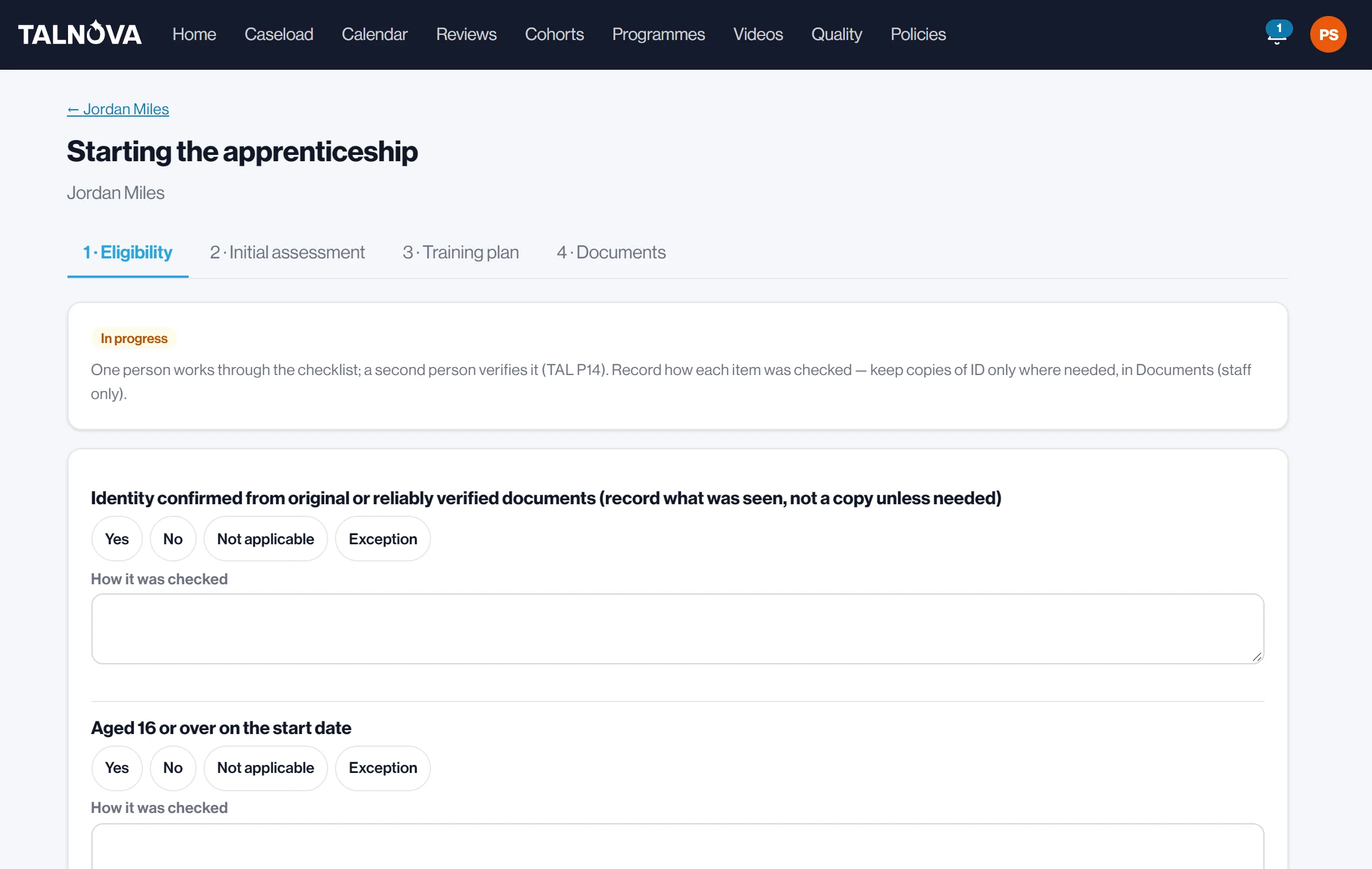
1 · Eligibility
- Go through the 15-item checklist: identity, age, residency and right to work, the job and contract, working hours, time in England, the role, paid off-the-job time, not on another funded apprenticeship or in full-time education, prior attainment, new learning, English and maths, support needs, and funding. Answer each item Yes, No, N/A or Exception, note the evidence, and upload it where there's a document.
- For an exception, say what it is, who owns it and when it's due, and Mark resolved when it's dealt with.
- Press Mark as checked. A second person is asked to verify it.
- The second person reviews it and presses Verify eligibility. If something needs changing, Reopen with a reason.
2 · Initial assessment and prior learning
- Record English and maths starting points.
- Do the Skills scan: for each KSB, the learner's self-rating and your judgement (None, Partial or Full), with the evidence and any gap.
- The Prior learning % is suggested from the judgements (full counts in full, partial counts half). If you use a different figure, say why. If you recognise no prior learning, record the conclusion and its evidence.
- Under Hours, duration and price, the revised off-the-job hours, duration and maximum price are worked out from the baseline hours and the funding band. A price above the revised maximum is blocked.
- Press Complete the assessment. A second person checks the funding calculation (I've checked the baseline, %, hours, duration and price).
- Press Apply to the enrolment to set the learner's planned off-the-job hours to the revised figure. Set the funding adjustment and price on the ILR record yourself.
3 · Training plan
- Start the plan. It fills in from the enrolment and the assessment: the apprenticeship, dates, off-the-job hours and price, plus what The apprentice will, The employer will and Talnova will do, and how reviews and complaints work. Edit it and Save draft.
- Warnings show if something looks wrong, such as a programme under the minimum length or fewer than 30 hours' work a week. Read them before issuing.
- Press Issue for signing. That freezes it as a numbered version, and the learner, employer and Talnova are each asked to sign it.
- Someone who signed on paper: Record a paper signature with who signed, the date and how understanding was checked.
- To change a signed plan, press Change the plan, say What's changing and why, then Start the next version. Earlier versions and their signatures are kept under Issued versions.
4 · Documents
- Press Add a document and choose its kind: apprenticeship agreement, employer agreement, ID or eligibility evidence, prior learning evidence, certificate, gateway declaration, inclusion or support record, or other.
- Who can see it and Who signs it fill in to suit the kind. ID evidence is always staff only. An Inclusion or support record (inclusion reviews, cognitive profiles, support plans) is always Support team only: only people with the Learner support role can open it, not other staff, the learner or the employer, so once you've added one you'll just see a note that it's there. The support team can also add these themselves.
- Upload it. The people who need to sign are asked to.
- New version replaces a file and needs a reason. Withdraw takes it back. Every earlier version is kept.
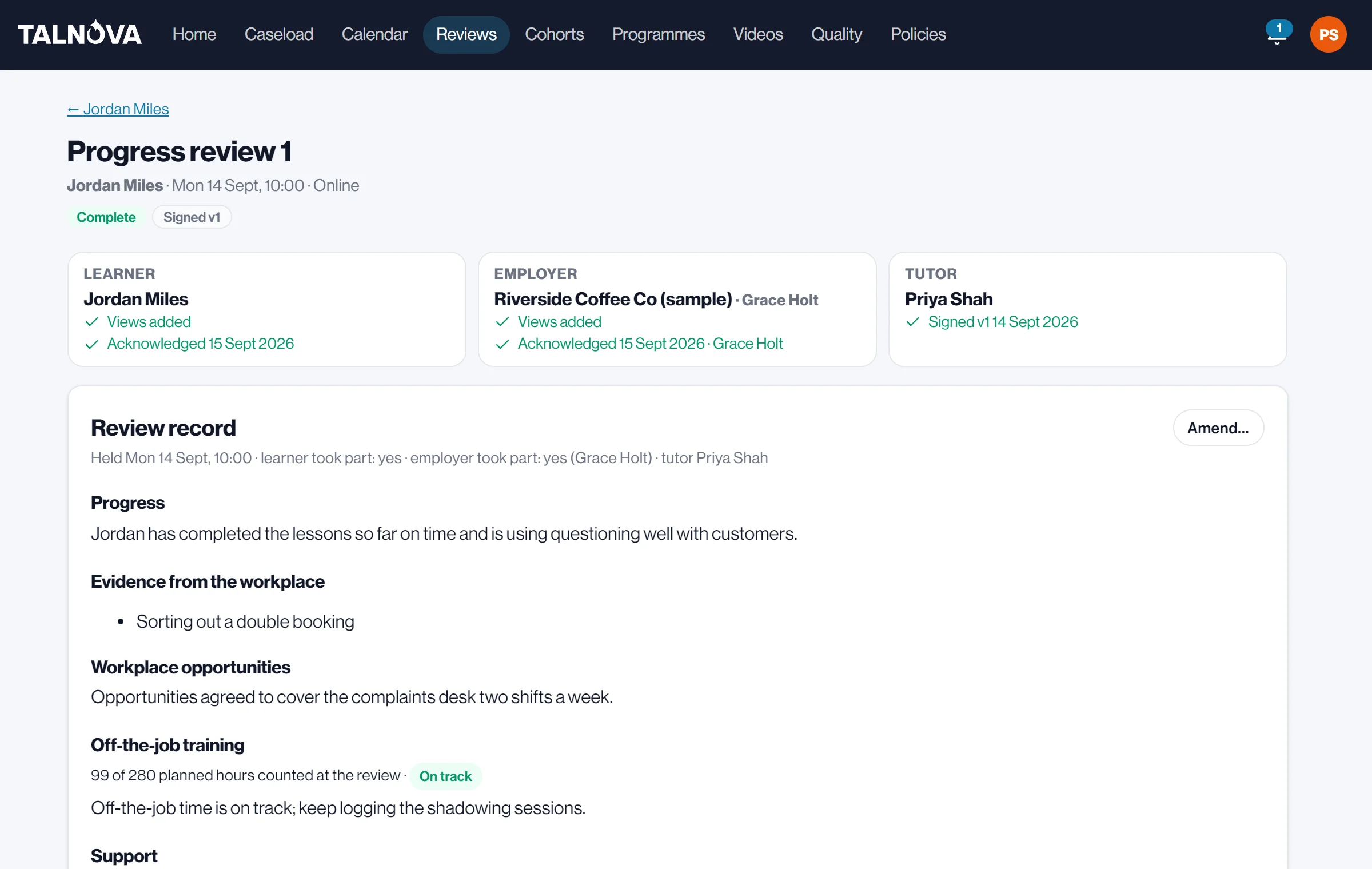
Running a progress review
For: Tutors (Owners and Admins too)
Reviews groups reviews into Needs you, Coming up, Waiting for the learner or employer and Recently finished, with "Actions for you". A review is due at least every 12 weeks. The schedule comes from the programme, and you can add more with Book an extra review on the learner's page.
Holding a review
- 1 · Prepare: set the date, length, place or meeting link. Add specific asks for the learner and the employer and a reply-by date, then Save and send requests.
- Hold the review. Their views are on the record when you open it.
- 2 · Record: when it was held and who took part, progress, evidence from the workplace, workplace opportunities, off-the-job training, Support (the employer never sees this), Private notes (staff only), agreed next actions with an owner and date, and the next review. Draft the record with AI gives you a starting draft if it's switched on.
- 3 · Check & sign: fix anything marked as an error, tick the warnings you've read, and Sign the record. This freezes a numbered version and asks the learner and employer to acknowledge it.
It didn't happen… and Cancel review… record why a review didn't take place. Amend… changes a signed record: it needs a reason and creates a new version to acknowledge.
Programmes, lessons and videos
For content editors and the teaching team: building what learners learn.
Standards and KSBs
For: Content editors and teaching staff
Each apprenticeship standard lists its duties and its knowledge, skills and behaviours (KSBs). Lessons, work stories and the initial assessment are all tied back to them.
- In Standards press New standard: reference, title, level, version, and the duties and KSBs pasted in.
- The tabs Duties, Knowledge, Skills and Behaviours list them. Import pasted lines to update them in place.
- Each KSB shows "Taught in N lessons" or "Not taught yet", so gaps stand out.
Building a programme
For: Content editors, Owners and Admins (teaching staff can read)
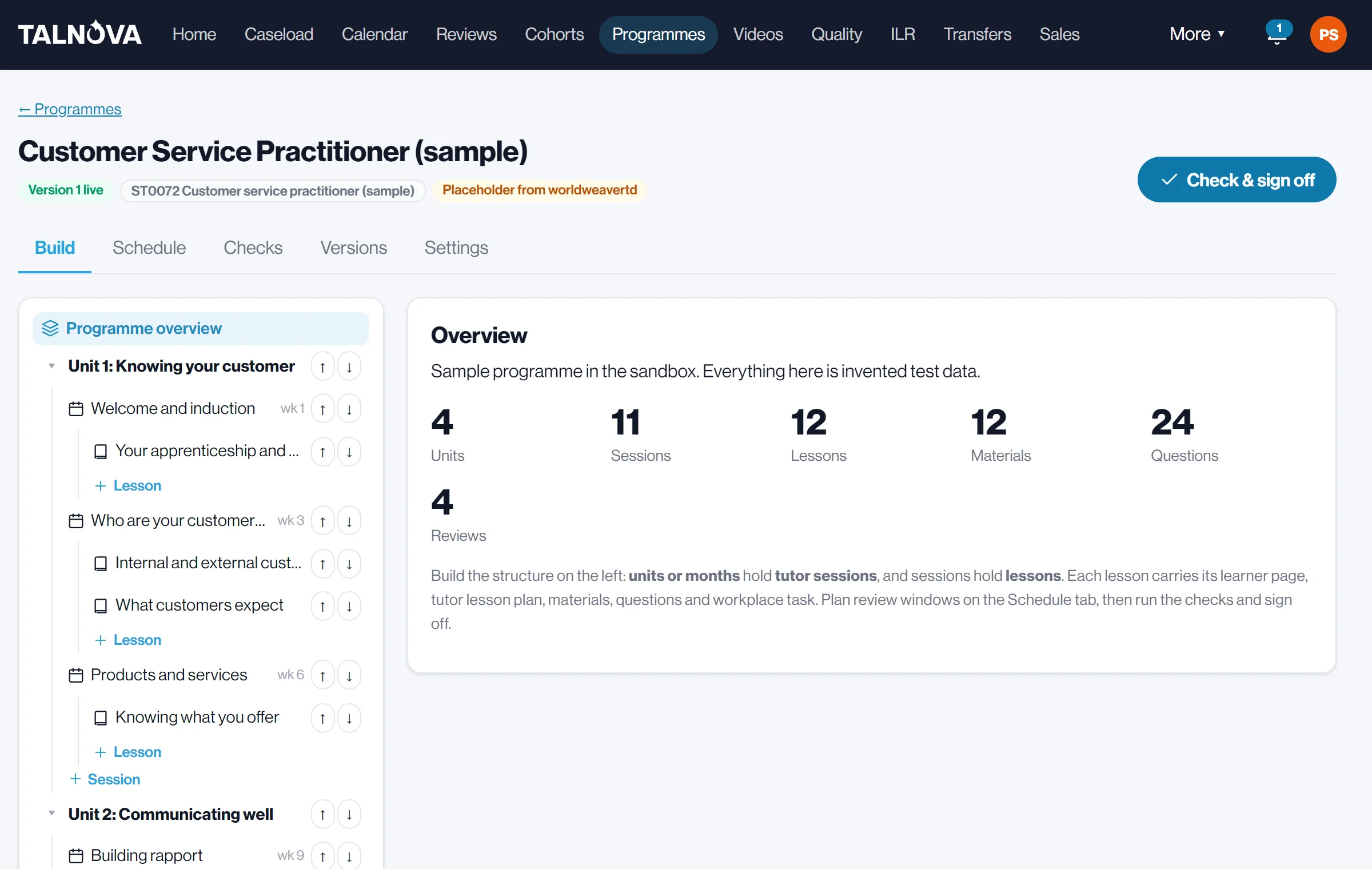
A programme is built once and reused by every cohort: units (often a month each) → sessions → lessons, each lesson with its materials, questions and workplace task.
From a blank programme to signed off
- In Programmes press New programme: Title, Apprenticeship standard, Practical period (weeks) and Planned off-the-job hours, then Create and start building.
- Build: add + Unit / month, + Session and + Lesson, and reorder with ↑ and ↓.
- Click a lesson to write it: title, learning aim, expected time, due days, the learner's page, the tutor's lesson plan (Add activity), duties and KSBs, Materials (drag in files, Link or Reading text, with captions and alt text) and Questions (Quick choice, Short answer, or How would you use this at work?), plus a Workplace task. Save lesson.
- Check it as learners will see it: Learner view / Tutor view, or the preview on Phone and Laptop.
- Schedule: the timeline and the reviews (plan one at least every 12 weeks).
- Checks: Re-run (and Check links too). Everything under Must fix blocks sign-off; Worth a look items are warnings.
- Check & sign off (Owner or Admin): add notes, tick the warnings and Sign off version N. That freezes the version. Later edits become the next version, and existing cohorts keep the one they started on.
Copy lesson, Move to session and Replace file with a newer version help with upkeep. Settings has Copy programme and Archive programme (and Restore).
Videos library
For: Content editors, teaching staff and Sales
Videos holds every video: short learning clips (30 seconds to 3 minutes, one learning point) and videos for the website, such as Meet the Team introductions. They're grouped under Being made, then by kind. Search, filter and Show archived.
Making a learning video live
- Press Add new: Record your voice, Upload audio, Record a video, Upload a video or A library video. These open the video maker. Or Or add a finished video as it is to upload one ready-made.
- On the video's page, set the title, learning point, kind, check-current date and transcript, and add captions if they're not in the picture.
- Add questions at a set second or after the video: + Quick choice, + Short answer, + Use it at work.
- Publish (Owner or Admin) freezes a numbered version. Errors block it, and warnings need ticking.
- Assign it to One learner, A cohort or A whole programme, with an optional Watch by date and note. Or tick "Show in every learner's Explore feed".
- Assigned & progress shows who has watched and answered.
- Withdraw stops an assignment and keeps the answers. Archive hides a video. A video that was never published can be deleted.
- Share makes a link anyone can watch without signing in. Stop sharing ends it straight away.
The video maker
For: Content editors, Owners, Admins, Tutors and Sales
The video maker turns a recording into a finished, captioned video with titles and on-screen cards.
- Source: record your voice or a video, or upload one (MP4, MOV or WebM, up to 1 GB and ten minutes). The sound is transcribed, and with AI on, the scenes are planned as a draft.
- Scenes: title and chapter cards, points, steps, figures, quotes, keywords and a summary. Over a video, each card is Over the video or Full screen, and can Pause the video for a few seconds. Choose On-screen captions and Animated or Plain cards.
- Transcript: Play from a word, Correct a misheard word (or Find / Replace with → Replace all), or Cut a stretch out of the finished video. The recording itself is never changed.
- Save, then Make video (Chrome or Edge on a computer; keep the tab open). It's filed in the library as a draft, still to be published there.
Quality, compliance and data
Keeping standards up, and the records funders and inspectors rely on.
Quality dashboard and actions
For: Quality, IQA, Tutors, Owners and Admins
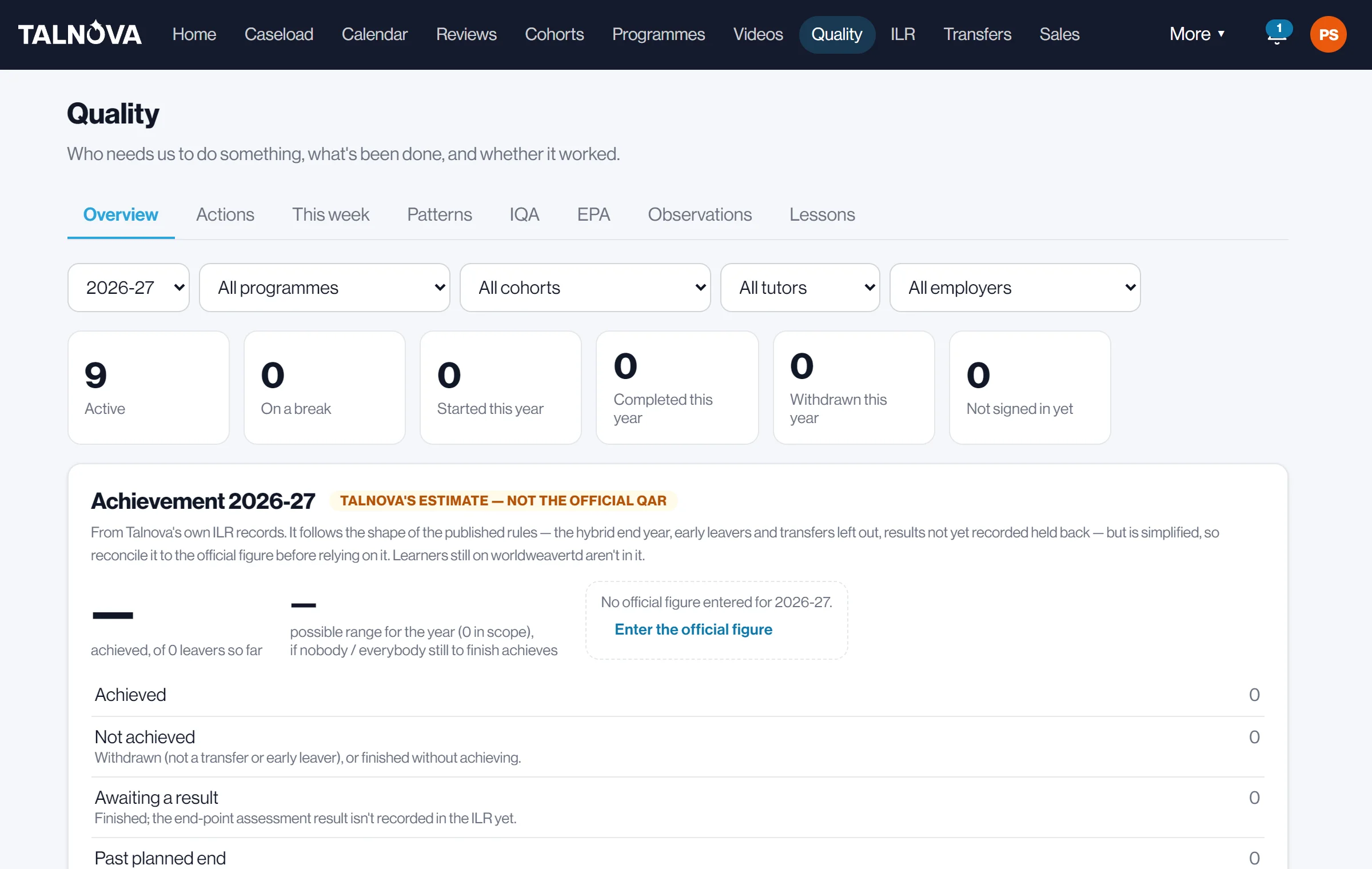
- Overview: an indicative achievement rate (an estimate, not the official QAR), retention, progress, reviews, EPA readiness and IQA. Click a figure to see the learners behind it. Tutors see their own learners.
- Actions: daily checks suggest actions (a review overdue, hours behind, "Get X ready for gateway" eight weeks before the planned end). Confirm, Done (with the outcome), Change, Note, Escalate, Not needed (with a reason) or Reopen. New action adds your own, and leads can Check now.
- This week and Patterns (leads): the week's figures and trends. Draft from this week's figures drafts meeting notes from counts only, without names.
- Lessons: learners' ratings and comments on each lesson, and a currency check at least every 12 months (Still current or Needs revising). Needs a look gathers the flagged, poorly rated and overdue ones.
IQA sampling
For: IQA and Quality
- On the IQA tab press New plan to set the sampling rules.
- Draw sample, then Allocate the samples to IQAs.
- The IQA opens each sample, records what was looked at and the outcome (Good, Minor action or Major action) and any corrections, then Sign off, or sends it to the tutor.
- The tutor replies and presses Send to the IQA.
Nobody can sample or judge their own decision.
Teaching observations
For: Quality, IQA and managers
- On Observations press New observation for a tutor (not yourself): date, cohort, focus, what went well, what to develop, an overall grade (Strong, Secure, Developing or Concern), the actions agreed and a follow-up date.
- The tutor is told, reads it and adds their reply with Send response.
- Once the tutor has responded, the observation can't be changed.
End-point assessment (EPA)
For: Quality, Tutors and managers
The EPA tab follows learners heading for their end-point assessment: counts by stage, and Needs something for gateways due within 12 weeks, learners past their planned end, assessments to book, resits to plan and results to chase.
- Update a learner as they move through: Preparing → Ready for gateway → Through gateway (with the date) → EPA booked (assessment organisation and date) → Assessed.
- Record the result. Pass, Merit or Distinction completes the apprenticeship; Fail asks for a resit date.
- Pass the result to the ILR with Record EPA result on the learner's ILR card.
ILR records and returns
For: Owners, Admins and Quality
The ILR is the funding return. In Talnova every ILR change needs a second person: an Owner, Admin or Quality who didn't raise or last edit it.
Making an ILR change
- From a learner's ILR card: Find their ILR record → Link (or Start a Talnova ILR record), then Read again, Send verified OTJ hours, Record EPA result or Other change… → Raise for checking.
- It appears under To check in ILR for someone else to Approve, Approve and pass across or Don't approve (with a reason).
- If Talnova isn't connected to the ILR system, enter the change there and press I've entered it in the ILR system.
- Learners: people not linked to an ILR record, or whose records differ.
- Records: Talnova's own ILR records. Edit the learner, eligibility, prior attainment, employment and aims, then Save ILR record.
- Returns: pick the Collection year, Check again, and Download the XML.
- Approved and History keep the trail.
Moving learners from worldweavertd
For: Owners, Admins and Quality (until early 2027)
Training and ILR are moving from worldweavertd to Talnova. Each learner agrees to the move individually.
- Agreement: write the transfer agreement and Publish as vN (Owner or Admin). Learners agree to that exact version.
- Add from worldweavertd: choose the learners to move.
- Select learners, choose a Cohort to join… and Set cohort. If the real programme isn't built yet, Make placeholder cohort builds one from their worldweavertd course.
- Send agreement: each learner gets their personal link.
- As they agree, they're imported (Agreed — importing, then Imported — to check). Open each one and Mark as checked, then Closed in worldweavertd once it's closed there.
Test transfer imports a learner's real record with dummy contact details so you can try Talnova on real data. Nobody is contacted, it's left out of the ILR return and it's flagged "Test transfer". Fresh test starts again and Discard test deletes it.
Policies: managing the library
For: Quality and managers
- Manage policies → New policy, or open one and start a New draft.
- Fill in the Details: title, reference, who it's for, scope, the accountable owner (a role, not a name), who can read it, who is asked to read and agree, when it takes effect, the review period, and who approved it and when. Save details.
- Write the text and Save draft. Say What changed and why.
- Publish version N. The people asked to agree get it under Waiting for you, with the date to agree by.
- Agreements shows who has agreed and who hasn't. Remind the rest, mark Signed on paper where needed, and Download CSV.
Archive policy retires one (Restore brings it back). Earlier versions and who agreed to them are kept.
Sales, employers and the website
Finding and looking after employers and learners, and keeping talnova.com up to date.
Sales: leads, employers and follow-ups
For: Sales, Owners and Admins
Every website enquiry and job application arrives in Sales as a lead.
- Today (Mine or Everyone's): new leads waiting for a reply (due within one working day), overdue follow-ups, and what's due today and this week. Log on any row. Sales staff get a morning notification of their follow-ups.
- Leads: search and filter, as a List or a Board. Drag a card to change its stage. Mark a lead lost on the lead itself, because it needs a reason.
- Employers: accounts with their sites, sector, workforce needs, people, opportunities and starts. New employer.
- Reports: leads → spoken to → qualified → meeting → proposal → started, by source, campaign, programme, sector, area, type, owner or month, with conversion, cost per lead and per start, and the main reasons lost. Also the open pipeline and a forecast.
- Campaign spend: monthly spend for each campaign, matched to the campaign on leads.
Working a lead
- Open the lead and Log what happened: a call, meeting, email, information sent or a note, with the next step and its date. Move the stage if it's changed.
- Use Next step to set the stage, owner and, for employers, expected starts and value.
- For an employer enquiry, Open an account to track the organisation.
- A lead becomes Started by itself when the person's enrolment begins.
New lead records a call, walk-in, event or referral. Only tick marketing consent if they agreed to it.
Employer organisations
For: Owners, Admins and Sales
Employers taking apprentices get their own small organisation in Talnova, so their workplace managers can sign in. In Employers press Add employer, enter its name and, if you like, invite its main contact. Link it to its Sales account under About them → Edit.
Website: team, news, CSR and videos
For: Owners, Admins, Sales and Content editors at Talnova
- Meet the Team: Add a person with their photo, job title, group and optionally a video, and tick "Show on the website". Make or upload the video in Videos first, with its kind set to Meet the Team.
- News & Events and CSR: New post, then tick "Published on the website". A future publish date schedules it. Published posts go into the sitemap so search engines find them.
- Videos: choose the library video for each place on the website where one plays, or None to show the "coming soon" picture.
Changes show on the website straight away.
Running the organisation
For Owners and Admins: people, settings and the record of who did what.
People, roles and invitations
For: Owners and Admins
Inviting someone
- In People press Invite someone.
- Enter their Email and names, choose their Roles and add a message if you want. Press Send invitation.
- Pending invitations can be Resent (with a new link) or Withdrawn. Inviting someone who's already a member adds the new roles.
Changing someone's access
- Edit a person to change their roles or job title, set Access to Active or Suspended, or Remove them. Their history is kept.
- Only Owners can grant or remove the Owner role, and the last Owner can't be removed.
- Owners and Admins can View as someone in their organisation to see what they see, for up to 2 hours. Everything done is recorded against both of you.
Organisation details and history
For: Owners and Admins
Organisation holds the name, UKPRN or company/EDRS number, contacts and address (Save changes). History is the audit trail: who changed what and when, including changes made while viewing as someone else. It can't be edited.
Roles explained
For: Everyone
- Owner: everything, including managing other owners.
- Admin: people, settings, cohorts and enrolment, signing off programmes and publishing.
- Tutor: caseload, checking answers, work and hours, reviews, cohort dates, and starting apprentices.
- Learner: a student or apprentice.
- Workplace manager: an employer's contact or mentor, with their apprentices, reviews and workplace opportunities.
- Quality: quality dashboards and actions, ILR approvals, transfers, second checks and policies.
- IQA: sampling plans, evidence checks and IQA sign-off.
- Sales: enquiries, employers, vacancies and website content.
- Content editor: builds programmes, lessons and videos. An Admin or Owner signs them off.
- Learner support: support and safeguarding. The only role that sees support notes and support-team-only documents.
- Auditor: read-only oversight.
Employer organisations can only have Owner, Admin and Workplace manager.
System
For System users only: the level above Owner, for the platform itself.
System tools
For: System users
- Users: find anyone. View as them (a banner shows "Viewing as…"; Back to my account returns), Sign out everywhere, set flags, Add to an organisation.
- Organisations: every organisation. New organisation, or click one to work inside it. The organisation switcher appears in the top bar.
- Features: switch whole areas on or off for everyone.
- Audit and Logs: the full audit trail and the system logs.
The sandbox (test data)
For: System users
The sandbox is a separate organisation, Talnova Sandbox (test data), full of invented people: a sample programme, a cohort, employers, and learners with lessons, off-the-job hours, work stories and reviews. Use it to try things or train staff without touching real records. It's also the App Store reviewer's login. Nothing in it reaches the ILR and nobody in it is emailed.
- On the System page, find the Sandbox (test data) card and press Create sandbox if it isn't there yet.
- Enter a person's email, tick their sandbox roles and press Add to sandbox. A learner gets their own invented apprenticeship, and a tutor gets three invented learners. Tick Sandbox only for an account that must never see real data (like the reviewer). Remove takes someone out.
- Open sandbox switches you into it. Switch back with the organisation switcher.
- Reset test data puts fresh invented data back, with dates moved up to today.
How it fits together
The life of an apprenticeship, start to finish, and where each step happens.
The life of an apprenticeship
For: Everyone
- Enquiry. An employer or learner gets in touch through the website, and it arrives as a lead in Sales.
- Programme ready. The standard's KSBs are in Standards, and the programme is built and signed off in Programmes.
- Cohort. A cohort is set up from the signed-off version, with its timetable, in Cohorts.
- Enrolment. The learner is enrolled in the cohort and invited, with their employer, workplace manager and tutor.
- Starting the apprenticeship. Eligibility is checked and verified, the initial assessment sets prior learning and the revised hours and price, and the training plan and agreements are signed by all three parties (Starting an apprenticeship). The ILR record is linked and checked in ILR.
- Learning. The learner works through Learn and short videos, sends work stories, and logs off-the-job hours in My work. The tutor checks it all in Caseload.
- Reviews. Every 12 weeks at least, the learner, employer and tutor hold a review in Reviews, and everyone acknowledges the signed record.
- Keeping on track. Quality flags anyone falling behind, IQA samples the assessment decisions, and policies are agreed in Policies.
- Gateway and EPA. The learner is prepared, goes through gateway and takes the end-point assessment, tracked on the EPA tab. The result is sent to the ILR.
- What's next. Achievements are verified in Careers, ready for the next application.
Changes along the way, such as a break in learning, a moved date, a new plan version or an amended review, are each recorded with a reason. Earlier versions are always kept.